Use LeadRecoverly without guessing what to click next.
This guide walks through the full workflow: choosing a plan, connecting HubSpot, running a scan, reading the findings, setting up LeadRecoverly tracking fields, and approving safe cleanup actions.
Know what LeadRecoverly is doing.
LeadRecoverly is a HubSpot cleanup and review tool. It scans your CRM for records that may need attention, then organizes those findings so your team can decide what to review or fix first.
Important: LeadRecoverly is designed to show findings first. Customer-approved actions should be reviewed before changes are made in HubSpot.
You will sign into HubSpot and approve the requested permissions. If you are not a HubSpot admin, you may need an admin to approve the connection.
The free report shows a preview. Paid plans unlock deeper record lists, exports, ongoing review tools, and approved actions depending on the tier.
Choose a free report or paid plan.
Start on the free report or pricing page. If you are still evaluating the product, use the free report first. If you already know you want cleanup workflows, choose the plan that matches the depth of help you need.
Use this when you want to see what LeadRecoverly can find before paying.
Use this for basic cleanup visibility and a practical starting point.
Use this when you want deeper review tools, revenue-focused follow-up, and more detailed workflow support.
Use this for the highest level of operations-focused reporting and team cleanup visibility.
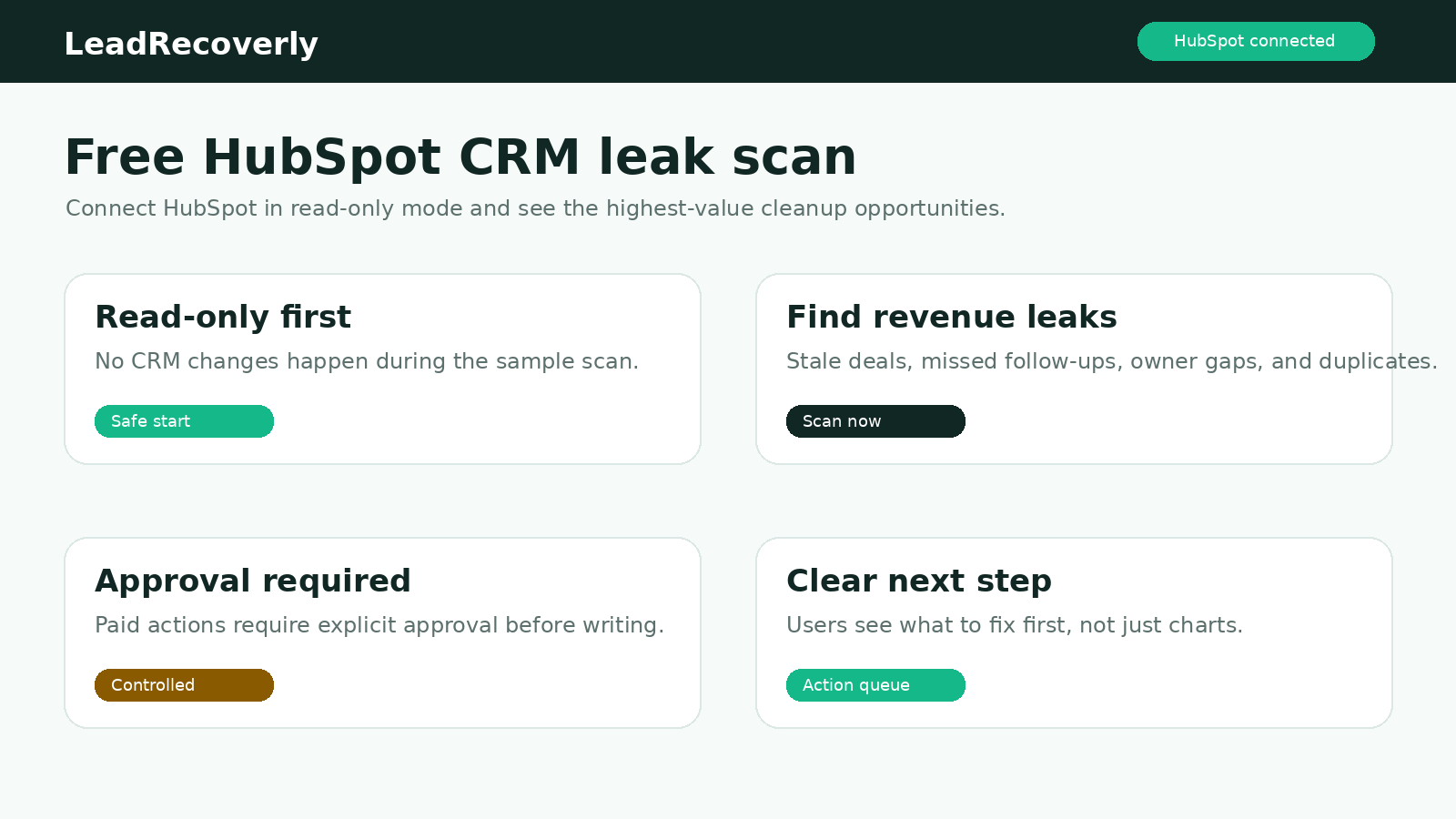
Connect HubSpot.
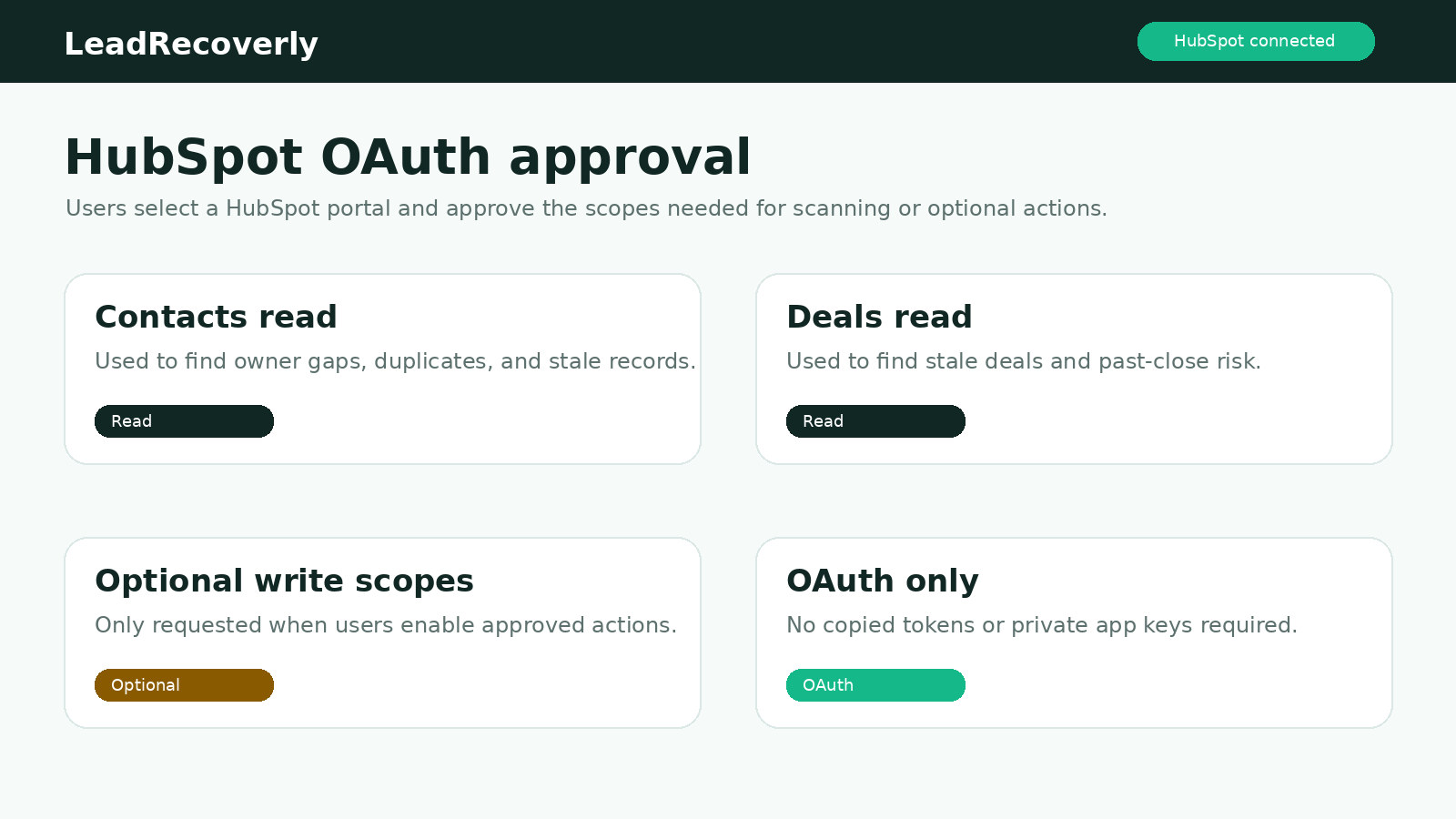
When you click the HubSpot connection button, HubSpot opens and asks you to approve the permissions LeadRecoverly needs. This lets the software read CRM records for the scan and, on paid plans, prepare approved cleanup actions.
Use the button in the workspace or report flow. Do not manually paste OAuth links into the browser.
If you have access to more than one portal, pick the customer account you want LeadRecoverly to scan.
Read permissions allow LeadRecoverly to scan. Write permissions are only used for approved customer actions where your plan supports them.
After approval, HubSpot redirects you back to LeadRecoverly. Then the workspace should show the connection state and allow scanning.
If the connection does not update: refresh the workspace once, then try the connection again. If it still fails, test on cellular/hotspot to rule out office network filtering.
Run your CRM scan.
Once HubSpot is connected, run a scan from the customer workspace. The scan checks records and builds a review queue. The goal is not to overwhelm you with every possible issue. The goal is to make the most important cleanup work easier to see.
The button should change while the scan is working. Do not keep clicking it repeatedly while it is processing.
Larger HubSpot accounts can take longer. The workspace should show progress or a completed scan state.
Start with the score, record counts, and top issue categories before going into individual records.
Read the findings in the right order.
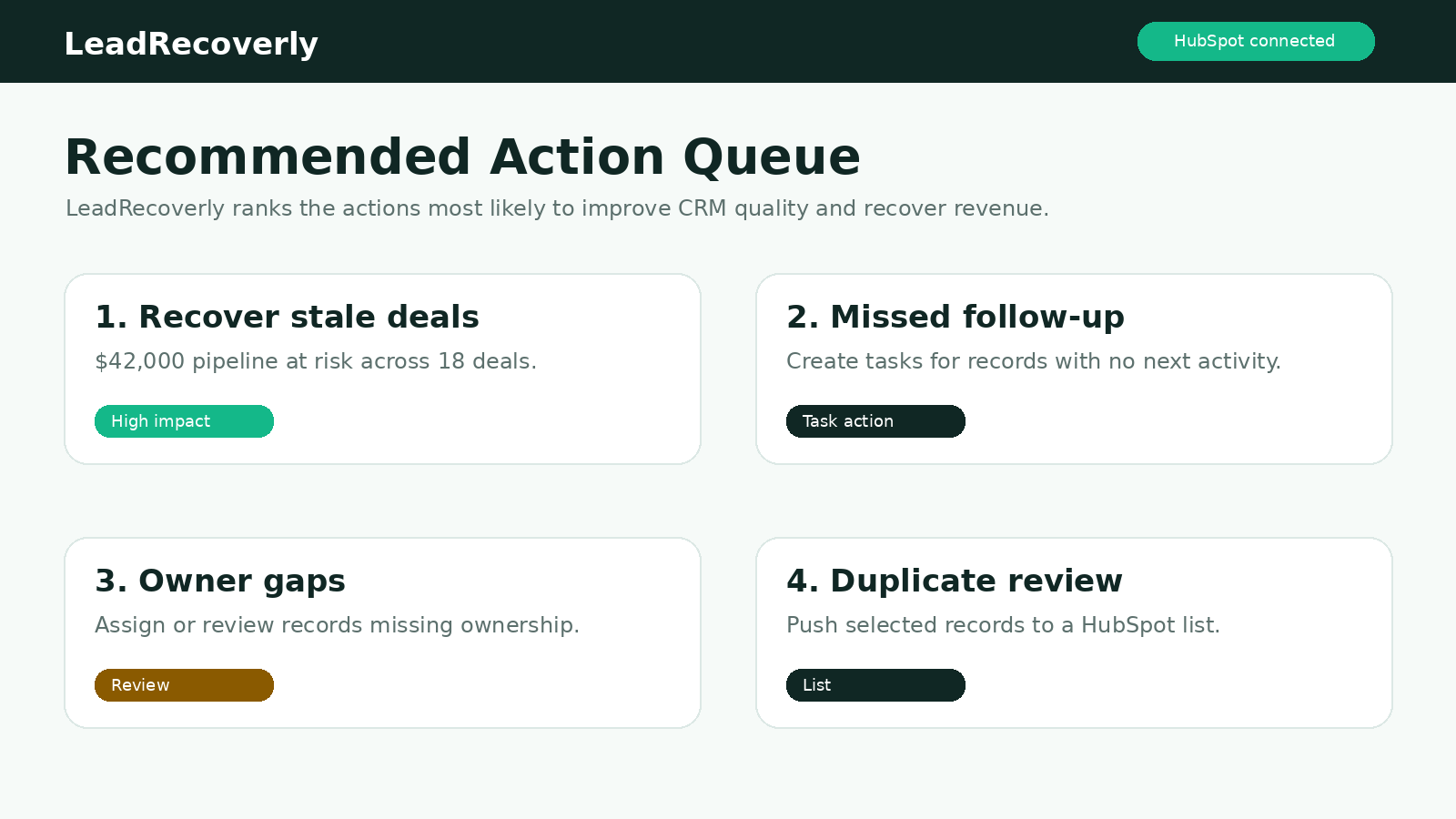
Do not treat every finding as equally urgent. Start with issues that affect active sales work, follow-up, ownership, and pipeline visibility.
Look at record counts
Contacts, companies, and deals help you understand how much data was reviewed.
Check top issues
Stale deals, missed follow-up, duplicates, and missing owners are usually easier to act on first.
Open the review queue
Use the queue to see which records need human review before taking action.
Use exports when needed
If your team works in spreadsheets, export the list and review it outside HubSpot first.
Simple rule: Start with the smallest list that could create the biggest operational improvement.
Save your business profile settings.
The business profile tells LeadRecoverly how to estimate priority and value in a way that matches your business. A software company, a local service company, and an ecommerce store should not use the same assumptions.
This helps the software avoid generic assumptions.
Use a realistic average. Do not inflate the number. Bad assumptions create misleading estimates.
Choose the number of days after which a lead or deal should be considered neglected.
Future scans and estimates should use the saved assumptions.
Create LeadRecoverly tracking fields.
The button may say Create LeadRecoverly tracking fields. This creates custom HubSpot properties used by LeadRecoverly to store scan results, priority labels, review status, and recommended actions.
This does not mean LeadRecoverly is changing all of your CRM records. It creates the fields LeadRecoverly needs so future results can be tracked clearly inside HubSpot.
The fields are created inside the HubSpot portal you connected.
Tracking fields make it easier to see which records were flagged, reviewed, ignored, or approved.
If your team lives inside HubSpot, these fields help keep LeadRecoverly results visible there.
Approve actions only after reviewing them.
Paid plans can support approved cleanup workflows. The safe way to use this is to review the suggested action, confirm it makes sense, then approve the change.
Look at what LeadRecoverly says is wrong and why the action is suggested.
Make sure the contact, company, or deal is the right one.
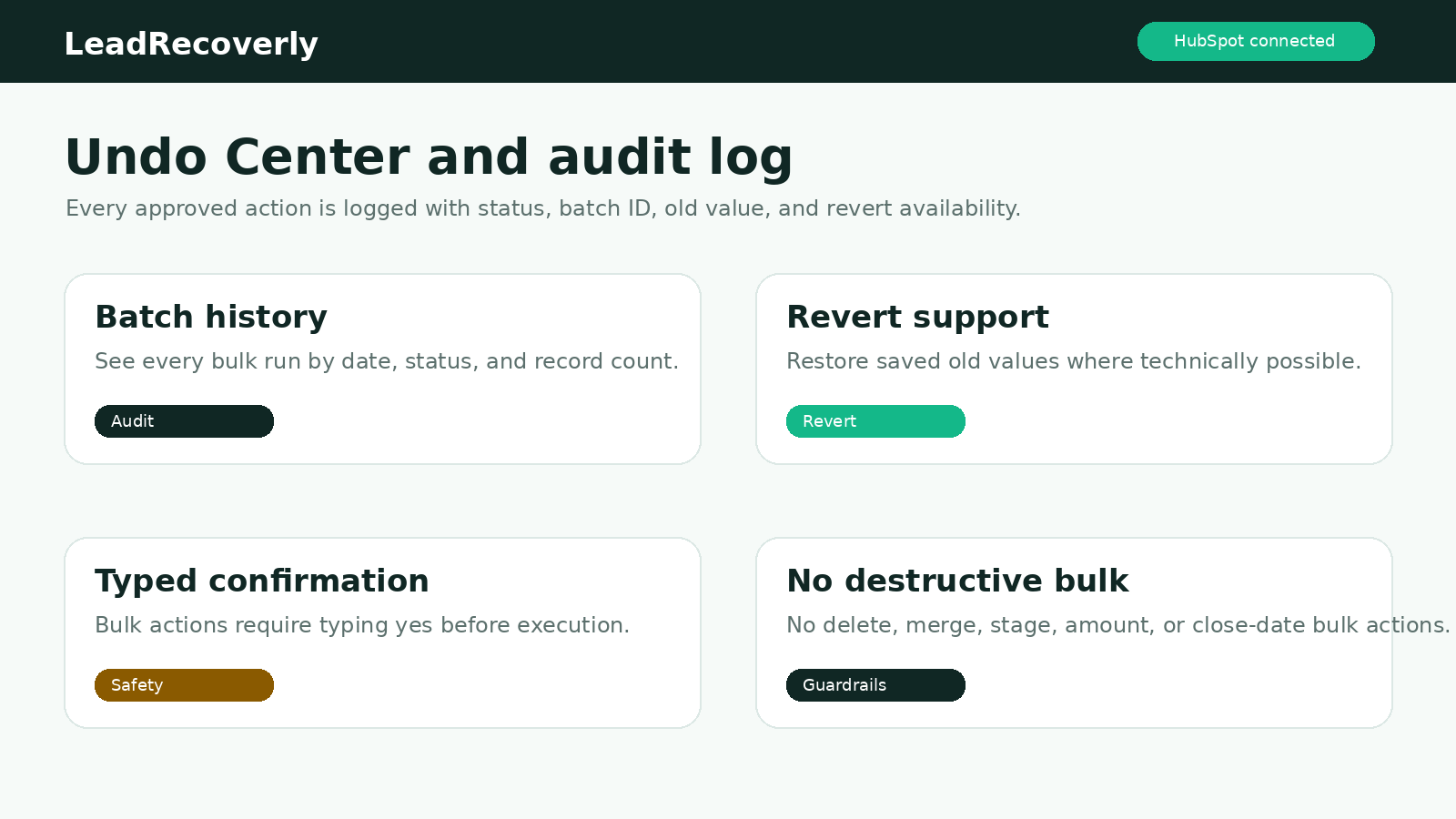
Do not bulk approve anything unless you are confident the rule is correct.
Keep track of what was approved and when.
Use the features included in your plan.
LeadRecoverly should only show or unlock features that match the active subscription. If a customer is on a lower plan, higher-tier functions should remain unavailable or clearly marked as upgrade options.
Clean
Best for basic CRM cleanup visibility and starting a review queue.
Recover
Best for deeper recovery-focused workflows, exports, and follow-up review.
Optimize
Best for the most advanced operational reporting and team-level cleanup visibility.
Upgrade path
If a feature is not in the current plan, the workspace should explain what it does and link to pricing instead of quietly giving access.
Common questions.
What if HubSpot says connected but the workspace does not update?
Refresh the workspace once. If it still does not update, try cellular/hotspot to rule out office Wi-Fi filtering. Then reconnect HubSpot from the workspace.
What if a scan seems stuck?
Wait a minute, then refresh the workspace and check the last scan status. Very large portals can take longer.
Should I create tracking fields right away?
Create them after connecting HubSpot and before using approved actions. They help LeadRecoverly store review status and scan labels in HubSpot.
Does LeadRecoverly automatically change records?
The intended workflow is review first, then approve selected actions. Customers should understand what is being changed before approving it.